

A prospective client searches a business owner’s name and sees a troubling phrase beside it. That first impression can raise questions before anyone reads the full story. Google autocomplete modification may help address the concern, but the right steps depend on what caused the result.
For a person or company, an unwanted association can feel urgent, especially when news or damaging terms appear. We can start by checking what people see, then look at personal settings, reporting options, and the content behind the association. There are practical ways to assess the issue and choose a response.
Reputation Return offers tailored guidance and a free confidential consultation for individuals and businesses. We help readers understand what may be changed and what limits apply. First, it helps to know how Google’s system shapes predictions.
Key Takeaways
- Google predicts likely searches; it does not publish an opinion about a person or company.
- Results may differ by search history, device, and location.
- Personal settings affect one user’s experience, not every public result.
- Google reports are most useful when a prediction may break a policy or law.
- Useful, accurate content can help shape associations over time.
- Rep Radar can check your reputation and compare it with competitors.
What Can Google Autocomplete Modification Actually Change?
Google predicts likely searches; it does not publish an opinion about a person or business. Modification can influence associations, but no one can set exact public predictions or directly edit Google’s general results.
An autocomplete prediction is a suggested completion Google displays as someone types, based on what its systems predict they may search for. General predictions can reflect real search queries and trending topics, while personal signals can change what one user sees.
We can work to improve the associations around a name, but we cannot set exact public predictions or directly edit Google’s general results.
Google Autocomplete uses an algorithm to predict a likely search query. Repeated real searches can influence general predictions, and trending topics may affect them too. These predictions are not Google’s editorial judgment about a person, company, or news story.
A signed-in user’s search history can influence personalized predictions. Location can also affect which terms appear, so the same query may look different to people in different places.
A Google autocomplete modification API or Google autocomplete modification app is not a way to edit the public Google Search dropdown. Developers may use tools that return predictions inside their own applications, but those tools do not change Google’s public results.
How Google Forms Search Predictions
Google Autocomplete draws on signals such as real searches, trends, location, and, for signed-in users, search history. A prediction may reflect what people search for, not what Google considers true.
What a Business or Individual Can Realistically Influence
A reputation strategy can address the content and search behavior linked to an unwanted association. Our overview of Google and Bing autocomplete explains how these systems relate to search and online reputation.
A service can work toward better associations, but it cannot promise one chosen public prediction. Since results can vary between viewers, we should first check what different people may see.
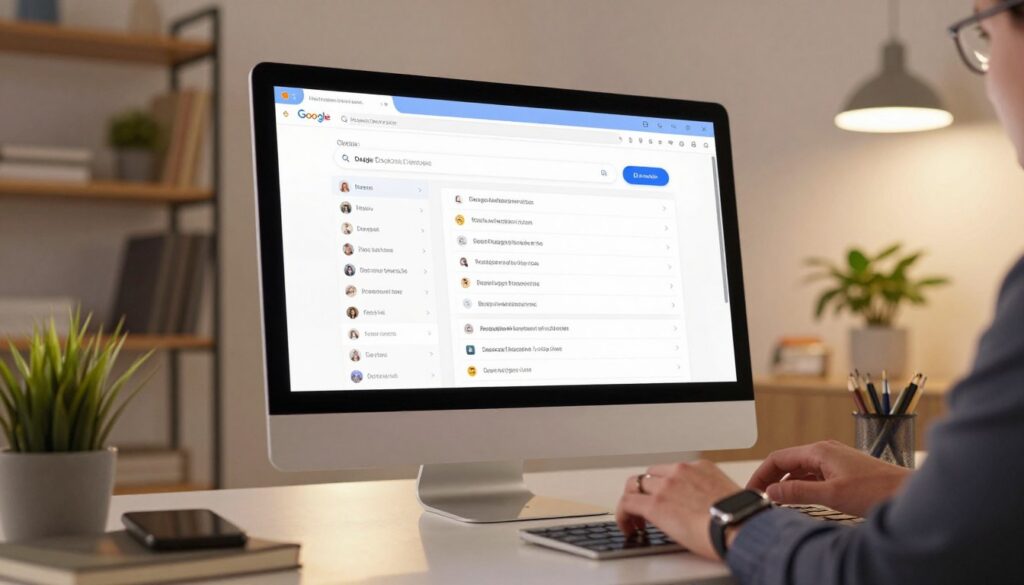
How Can You Check the Suggestions Other People See?
The same person may see a suggestion in a normal browser that disappears in an incognito window. Compare more than one view to learn whether a prediction is general, personalized, or tied to location.
Record the exact wording, date, device, and location for each check. Search the name or company in an incognito window, then compare results across devices and places.
A signed-in browser with a long search history is a poor baseline by itself. Personalized predictions can reflect that history, while Google Autocomplete can also use location signals.
Google autocomplete modification on Android can help you see a device-specific view. It does not prove every searcher sees the same prediction, even when they type the same name.
| Prediction type | Main signal | Who may see it | How to check |
|---|---|---|---|
| General predictions | Aggregate search behavior | Many users | Compare incognito searches |
| Personalized predictions | Individual search history | Signed-in user | Compare signed-in and incognito |
| Location-influenced predictions | Search location | Users in that area | Compare searches across locations |
Keep screenshots or written notes with the date and precise phrase. That baseline can show whether a personal setting may help or whether the prediction needs review.
Once you preserve the baseline, check whether device settings or a report could address the issue.
How Do You Manage Google Search Suggestions and Chrome Autofill?
Google Search predictions and Chrome autofill are separate features. One predicts searches; the other uses saved details to fill forms.
Changing personal settings can affect your own suggestions, but it does not erase general predictions for everyone. Google Search settings and Chrome’s saved addresses, payment methods, and passwords use different controls.
Turn Off Personal and Trending Search Suggestions
In the Google app on Android, open your profile, choose Settings, then Other settings and Autocomplete settings. Turn off trending searches there to change that device’s experience.
A mobile browser has a separate trending-search control. You can also turn off Search customization to limit related searches based on your activity. Menu names may change with product updates.
- Turn off Search personalization in Google Search settings.
- Turn off trending searches in the Google app.
- Check the separate trending-search setting in your browser.
These steps may help stop Google autofill search suggestions from using some personal or trending signals. They do not remove general predictions that other people may see.
Separate Google Search Predictions From Saved Autofill
To turn off Google autofill on Android, first decide whether you mean search suggestions or Chrome form details. Search settings manage predictions; Chrome settings manage saved details used to fill forms.
Turning off a Google Search option will not delete a saved address or payment method. Chrome autofill must be managed in Chrome, apart from Google Search settings.
Someone who wants to stop Google autofill search suggestions should check the Search controls and the app or browser settings separately. Menu labels can vary as products change.
If a harmful public prediction remains, check whether it fits Google’s reporting rules.
When Can You Report or Request Removal of a Suggestion?
Reporting is most useful when a specific policy or legal ground applies. A negative suggestion alone does not prove a policy violation or qualify it for removal.
Google may review a report without removing the prediction. Policy grounds can include sexually explicit content, hateful or violent content, personally identifiable information, and demonstrably false factual claims.
In the Google app, touch and hold a prediction, then select “Report this.” For a legal issue involving a prediction, use Google’s separate legal reporting route.
| Situation | Example | Possible route | Key limit |
|---|---|---|---|
| Explicit content | Sexually explicit phrase | Report in Google app | Review may not lead to removal |
| Personal information | Private phone number | Policy report or legal route | Include the exact prediction |
| Potentially false factual claim | False fraud claim | Policy report with evidence | Show why the claim is false |
| Accurate negative news | Arrest or lawsuit coverage | Address source content | Harm to reputation is not enough |
A true negative association tied to an arrest, lawsuit, or news coverage generally will not be removed just because it harms someone’s reputation. Accuracy matters when Google reviews a claim.
For a potentially false statement, save the exact wording and evidence that supports your report. Consult a qualified attorney about legal questions or claims that may affect your rights.
Our guide to reporting harmful autocomplete suggestions covers documentation and available routes.
When a suggestion does not qualify for removal, attention shifts to the content and search behavior sustaining it.
How Can You Improve Negative Search Associations Over Time?
An old article can keep prompting searches months or years after the news event fades. What remains online can keep an association active even when public attention has dropped.
Addressing, removing, or de-indexing underlying content can reduce a signal that keeps a damaging query active. Ongoing query volume and available content can sustain a prediction.
Address the Content Behind the Prediction
Start by reviewing the article, page, or post linked to the phrase. If it is inaccurate, outdated, or under your control, consider a correction or removal request.
When a page cannot be changed, de-indexing may be an option in some cases. The result depends on the content and the available grounds, not simply on whether it is upsetting.
Build Positive Associations Organically
Useful content about a person’s work, expertise, organization, or public contributions can support positive search associations. It gives people and search systems clear, accurate information to find.
We recommend real engagement, not coordinated or paid mass searches. Artificial searches may be detected, and they can be ineffective or counterproductive.
- Update an official biography with accurate current details.
- Publish substantive expert material that answers real questions.
- Maintain accurate professional profiles on relevant sites.
- Share genuine work, service, or community contributions.
Positive terms should match the person’s actual work. Useful pages may help build positive search associations, but no content plan controls what each person sees.
Changes depend on query volume, source content, and ongoing public interest. A prediction tied to major news may persist for months or years, with no guaranteed timeline.
More guidance on improving Google Autocomplete associations can help frame a long-term content effort.
Before choosing to manage the work alone or seek support, assess the source material and your ability to maintain credible content.
What Should a Reputation Support Plan Include?
Professional reputation support addresses online associations, while changing saved browser data is a separate task. Choose the path that matches the problem you need to solve.
No provider should guarantee exact public predictions or promise that every damaging result will disappear. Reputation Return helps business owners and high-profile people work to improve Google Autocomplete results and present their best information.
Reputation support can aim to show positive associations or hide damaging results, but no provider can guarantee exact public predictions.
Check the Work and the Limits Before Hiring
Ask how a provider assesses the content behind a negative autocomplete result. Ask how it defines achievable outcomes, protects confidentiality, and reports progress.
Reputation Return’s work can aim to show positive associations or hide damaging results. Results depend on factors outside any provider’s control, so clear limits matter.
Keep Chrome Autofill Changes Separate
Chrome Settings has an Autofill and passwords menu for saved addresses, payment details, and passwords. You can add, edit, or delete entries, or turn off saved-and-fill options.
For how to disable Autofill in Chrome, open Chrome Settings and switch off the relevant option under Autofill and passwords. The exact choice depends on whether you want to stop saving or filling addresses, payment methods, or passwords.
How to turn off Google autofill on iPhone depends on what you mean. Google Search suggestions use Search controls; saved Chrome data uses Chrome settings.
To answer “How do I edit my autofill address?”, open Chrome Settings, choose Autofill and passwords, then Addresses and more. Edit or delete the saved entry there.
Choose the path that fits your problem. If you need individual guidance, Reputation Return offers a free confidential consultation.
Conclusion
A troubling result can be assessed before you decide what to do. Start by checking what other people can see, then choose a response that fits a personal setting, a reportable prediction, or a broader reputation concern.
Positive search associations take time, and public predictions remain outside any one person’s direct control. A clear baseline can help you focus on the step most likely to address your concern.
Use Rep Radar, Reputation Return’s free reputation check, to review your results and compare them with competitors. You can also arrange a free confidential consultation to discuss your needs.